
Nutanix’s native Data Protection lets you group VMs into a Protection Domain and take scheduled local (and optionally remote) snapshots of them, without needing a third-party backup product. On a recent engagement we set up a second protection domain on a cluster that already had one running, to put a different set of VMs on their own backup schedule. This post walks through creating a protection domain, assigning entities to it, and scheduling snapshots, with screenshots from the actual project (customer identifiers and IP addresses have been redacted throughout).
Starting point: one protection domain already in place
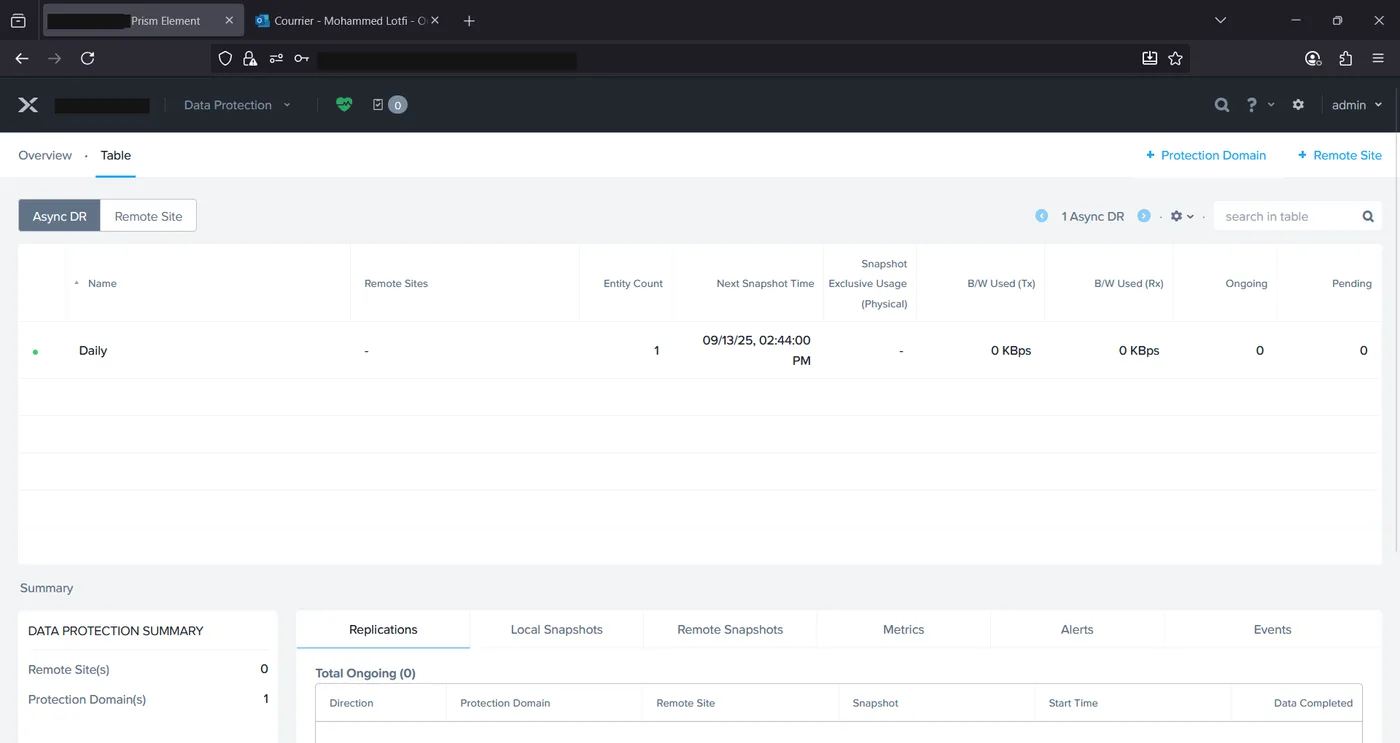
The cluster’s Data Protection > Table view is the central place to see every Async DR protection domain, its remote sites, entity count, next snapshot time, and current replication bandwidth. Going in, there was already a single protection domain named “Daily” protecting one entity, with its next snapshot due later that day.
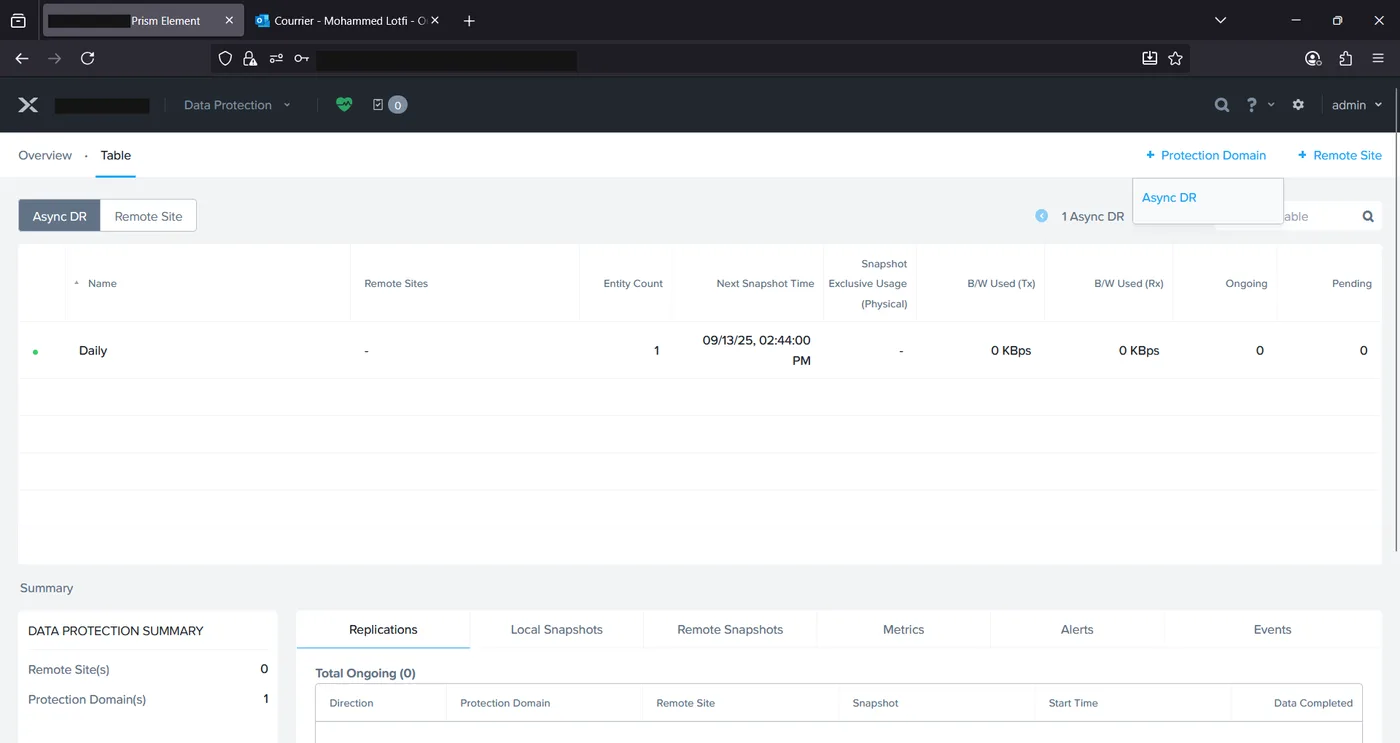
The “+ Protection Domain” link in the top right opens a small menu — on this AOS version it’s just Async DR — and starting that flow opens a three-tab wizard: Name, Entities, and Schedule.
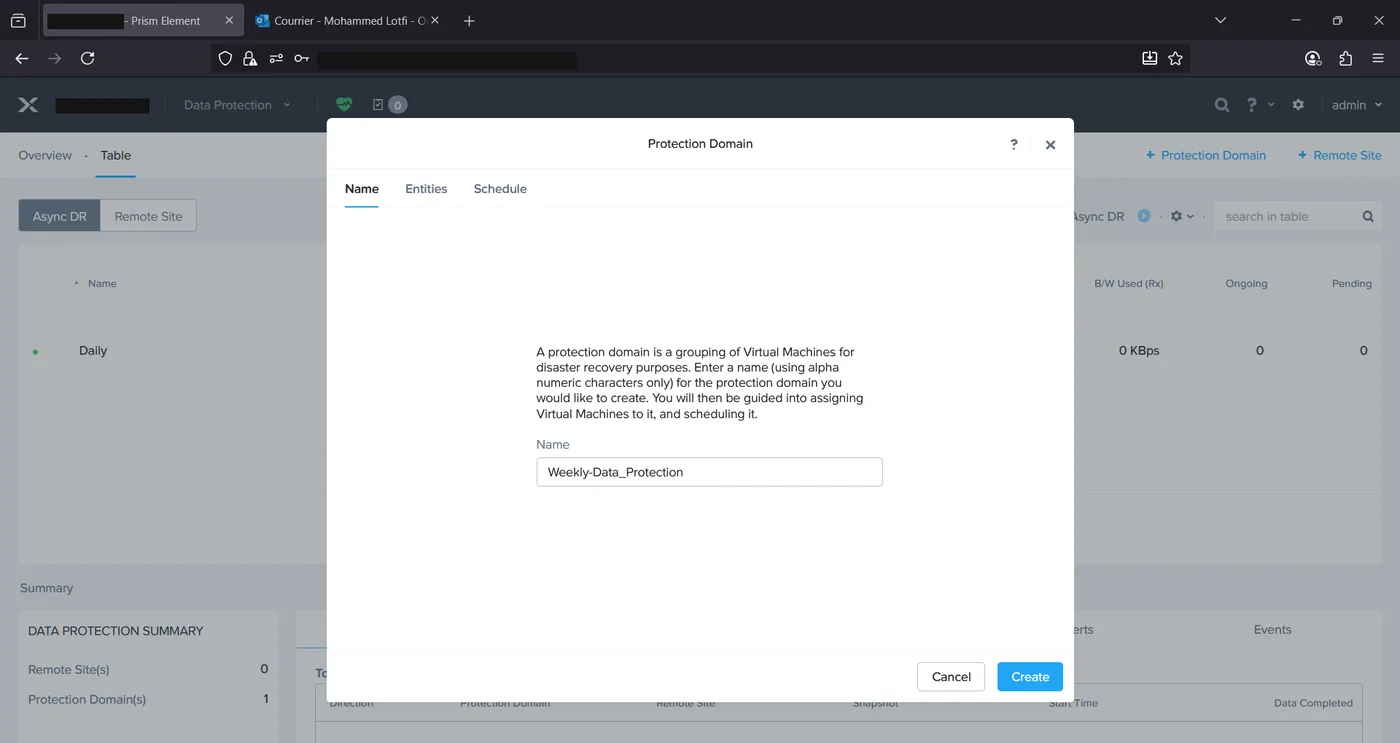
Step 1 — Name
The first tab just asks for a name, alphanumeric only, for the new grouping. We named this one Weekly-Data_Protection to make its purpose and cadence obvious at a glance — useful once there’s more than one protection domain to keep straight.
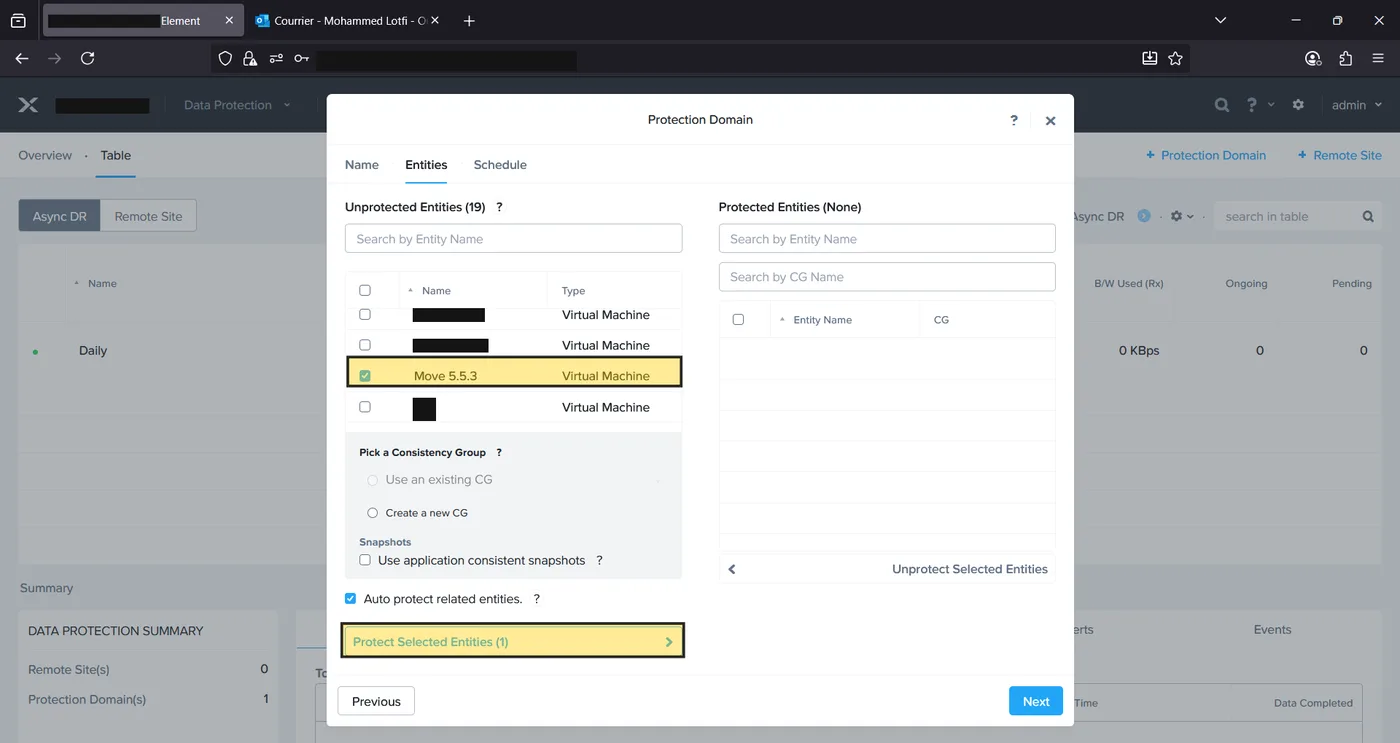
Step 2 — Entities
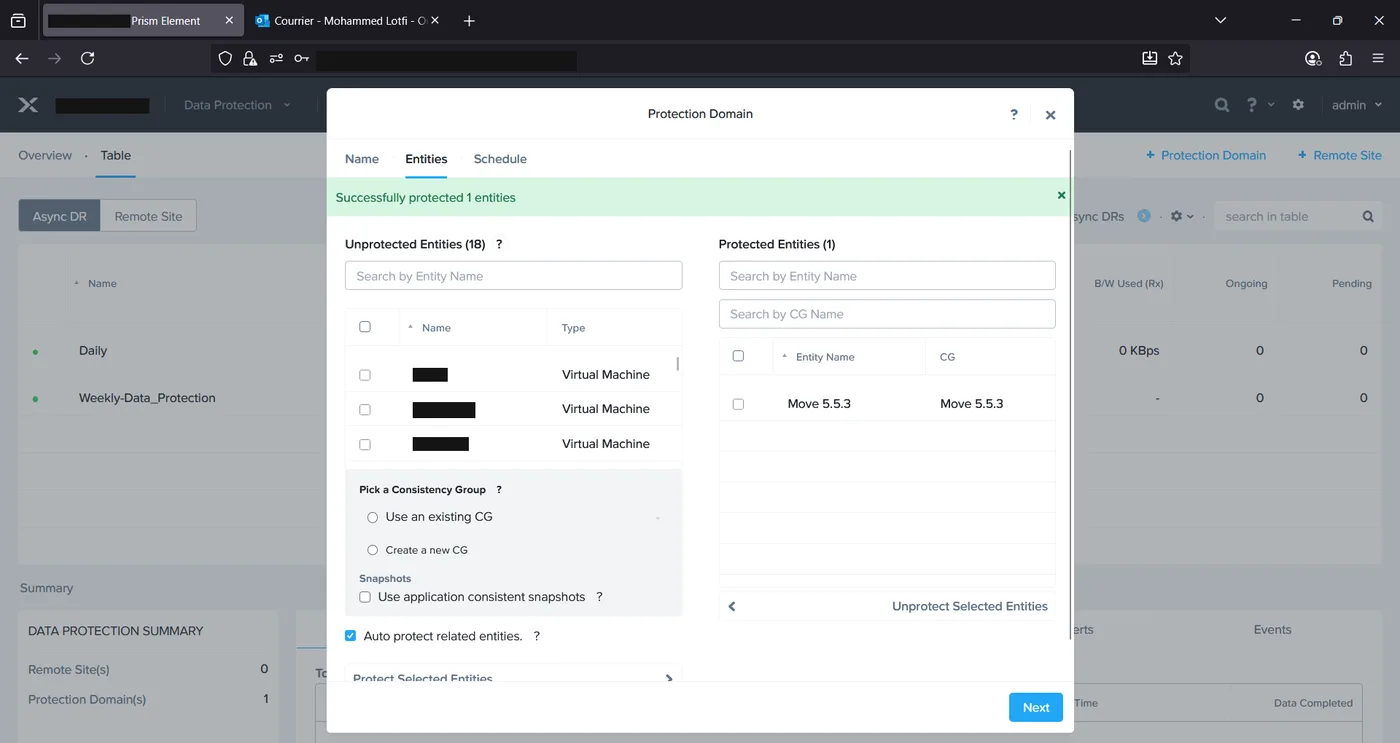
The Entities tab lists every VM on the cluster not already covered by another protection domain, alongside the ones already protected on the right. Selecting a VM and clicking “Protect Selected Entities” moves it across; there’s also an option here to pick or create a Consistency Group and to request application-consistent snapshots for the group, plus an “Auto protect related entities” toggle that pulls in any VMs the selected one depends on.
After protecting the first entity, the lists refresh: the VM moves out of Unprotected Entities and into Protected Entities on the right, and a green confirmation banner briefly confirms the action succeeded.
Step 3 — Schedule
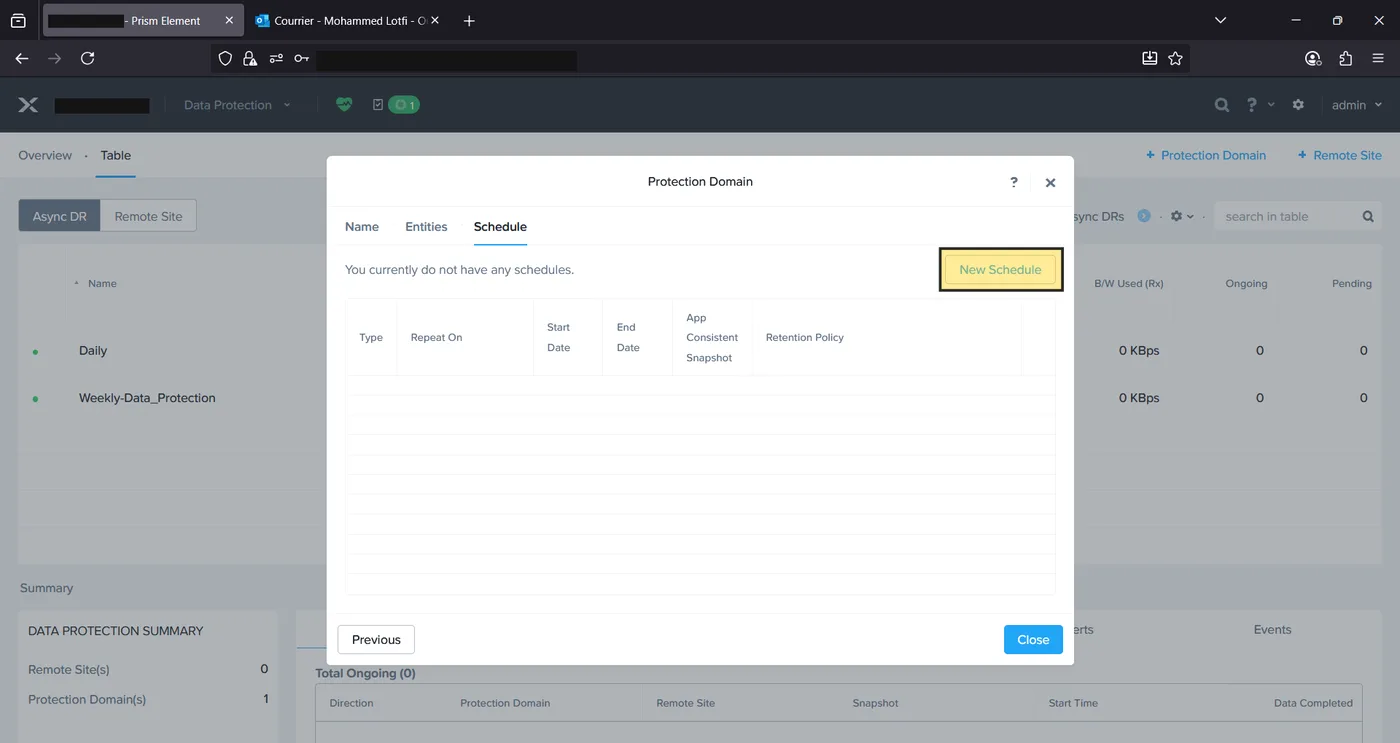
A protection domain with no schedule just sits idle, so the last tab is where the actual backup cadence gets defined. It starts out empty — “You currently do not have any schedules” — with a New Schedule button to open the configuration form.
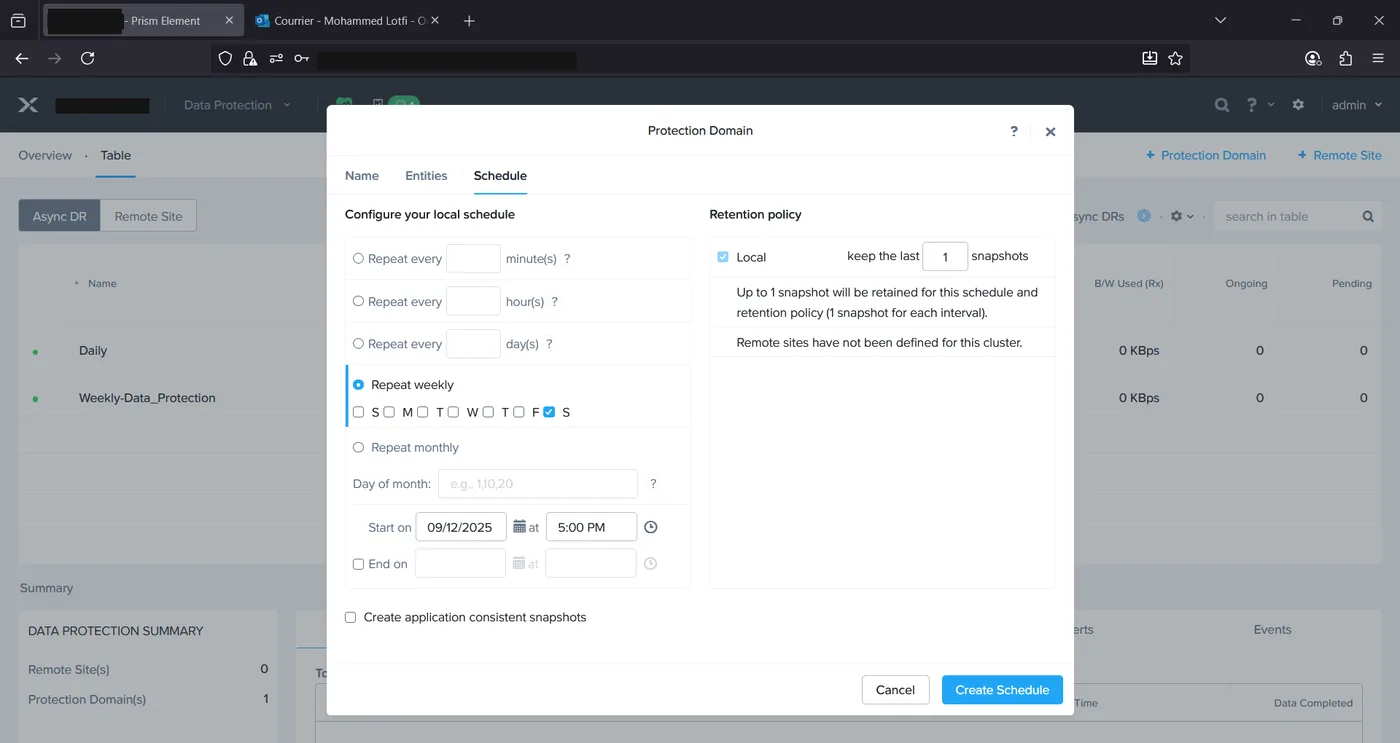
The schedule form supports repeating every N minutes, hours, or days, weekly on chosen days, or monthly on specific days of the month, plus a start date/time and an optional end date. For this domain we set it to repeat weekly on Saturdays at 5:00 PM. On the retention side, a local retention policy keeps a set number of the most recent snapshots — we kept the last 1 — and since no remote site was defined for this cluster, only local retention was available to configure.
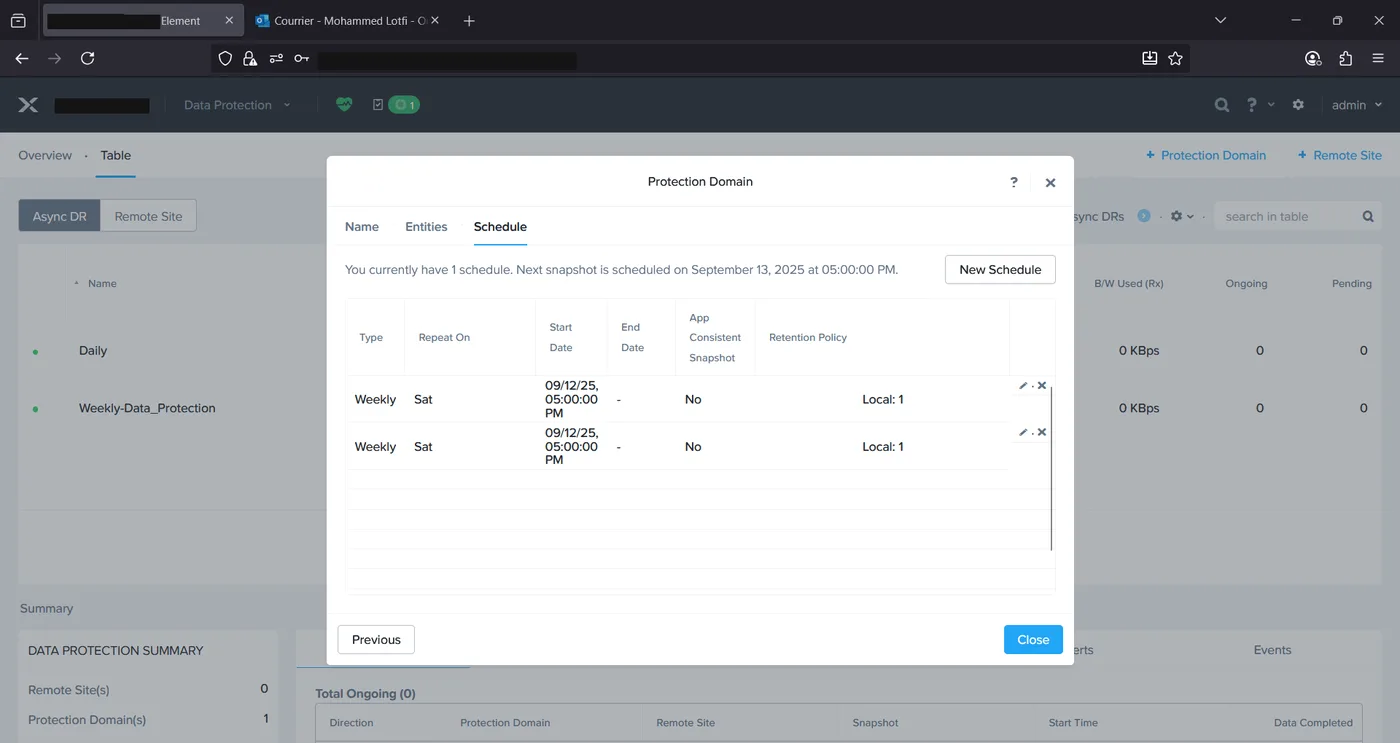
Once created, the Schedule tab shows the new entry with its cadence, start time, and retention policy, and the top of the page confirms exactly when the next snapshot will run.
The result: two independent protection domains
Back on the Data Protection table, the cluster now shows two Async DR protection domains side by side — the original “Daily” domain and the new “Weekly-Data_Protection” domain — each with its own entity count and its own next snapshot time, running independently of one another.
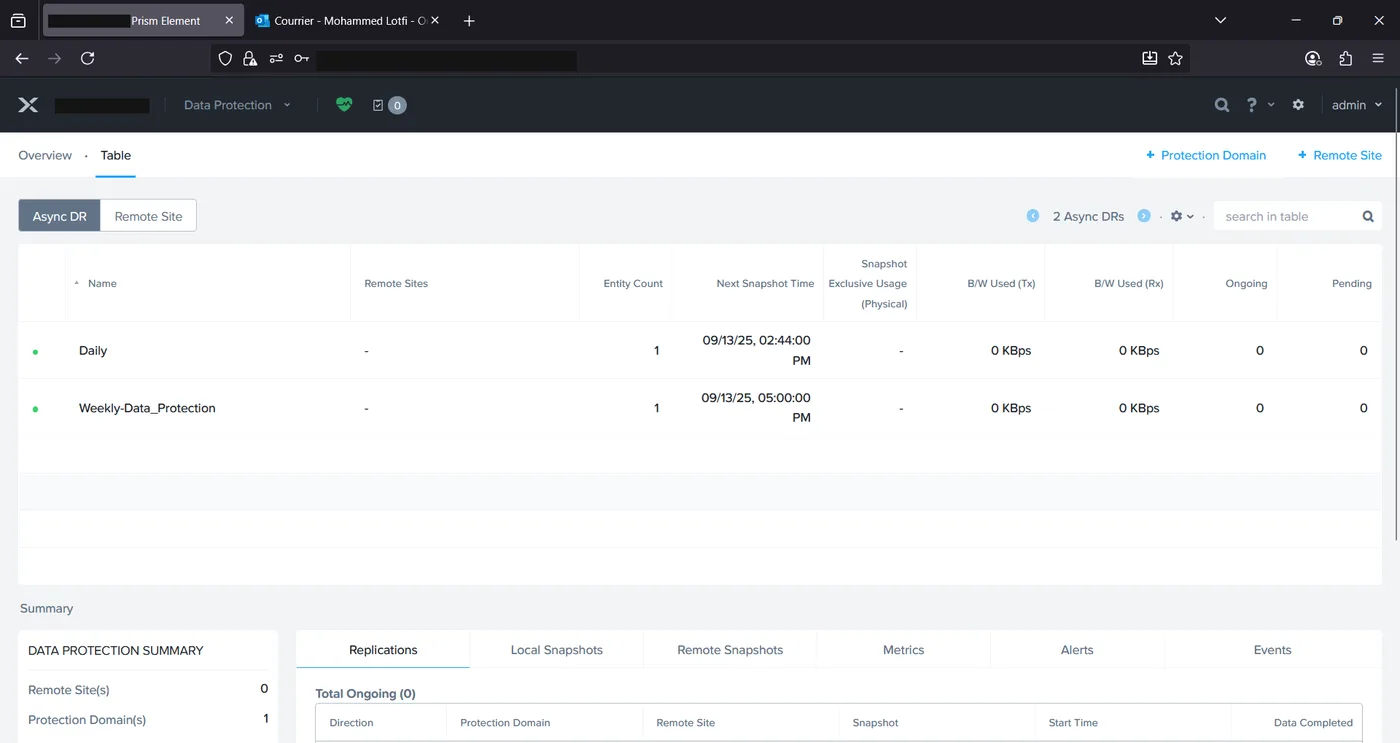
Splitting VMs across separate protection domains like this is a simple way to give different workloads different backup cadences and retention windows on the same cluster, without needing separate tooling or a remote site to get started.