
Every so often an LCM firmware upgrade doesn’t come back. The node was booted into Phoenix — the small Linux environment LCM uses to flash firmware — the update failed or stalled partway, and now the node is sitting at a Phoenix prompt with its CVM and hypervisor both in maintenance mode. Prism shows a host down, the cluster is running on one fewer node than it should be, and the temptation is to start clicking things.
Don’t. The recovery is well-defined and mostly a matter of doing four things in the right order:
- Reboot the node out of Phoenix and back into the hypervisor.
- Take the CVM out of maintenance mode.
- Take the hypervisor host out of maintenance mode.
- Confirm cluster services are back and metadata has settled.
This is the sequence from a recent case on a six-node AHV cluster, with screenshots. Customer identifiers, addresses and serials are redacted throughout.
Step 1 — Make sure nothing is still running
Before touching the node, confirm LCM isn’t still mid-operation. Rebooting a node while LCM believes it owns it makes the situation worse, not better. From any healthy CVM in the cluster:
nutanix@CVM~$ lcm_upgrade_statusYou want to see No task found for kLcmUpdateOperation. Then check for an inventory task as well:
nutanix@CVM~$ ecli task.list include_completed=false operation_type_list=kLcmInventoryOperationThat should return no tasks either. If either command shows something in progress, wait — or if it’s genuinely wedged, that’s the point to involve Nutanix Support rather than force it.
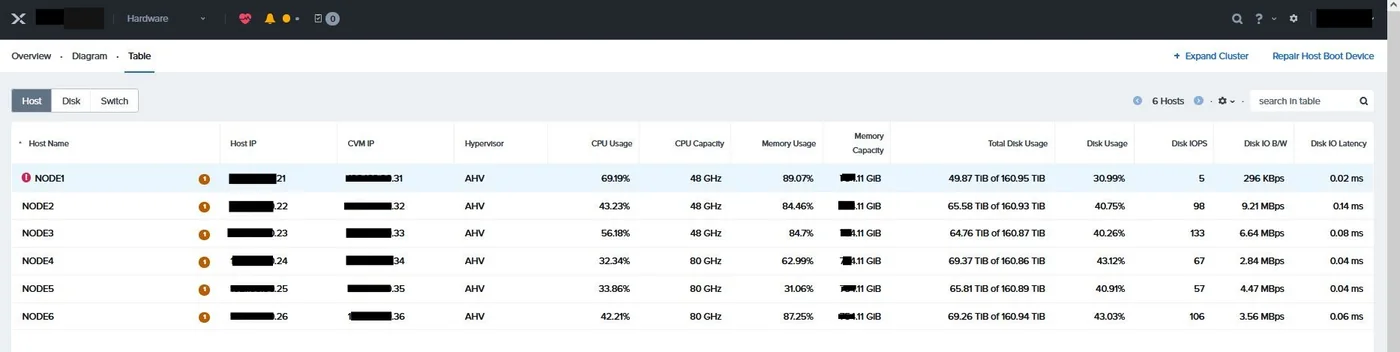
In Prism, the Hardware table will show the affected host flagged. In this case NODE1 was carrying the critical alert while the other five were up.
Step 2 — Confirm the node is actually in Phoenix
A node that isn’t responding on the network could be in Phoenix, or it could be hung, powered off, or stuck in BIOS. They need different fixes, so look before you act. Open the KVM console from the node’s IPMI web interface. A node in Phoenix looks exactly like this — a bare [root@phoenix ~]# prompt and nothing else:
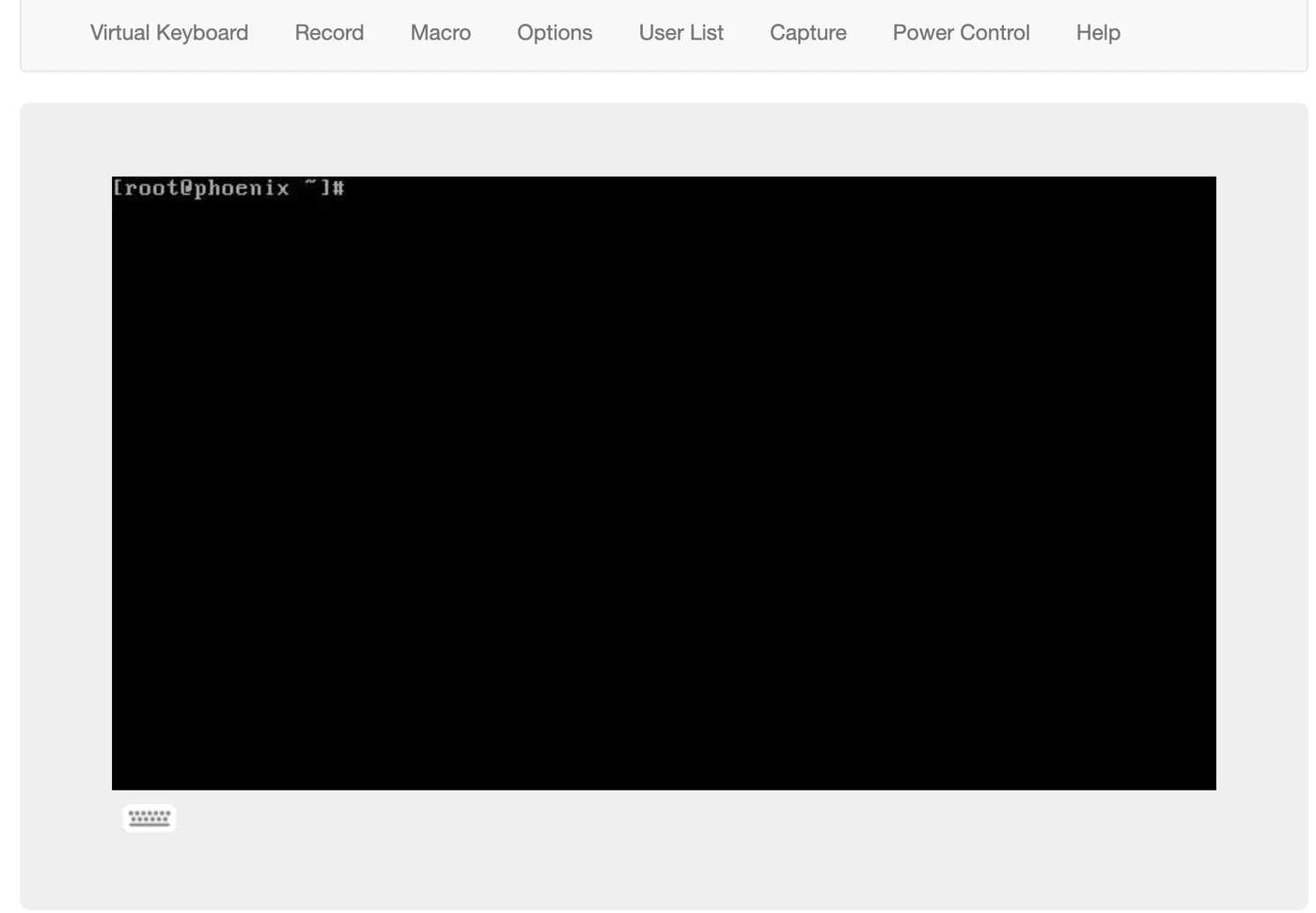
If you see this, the node isn’t broken — it’s parked. If you see something else, stop and diagnose that first.
Step 3 — Boot back into the hypervisor
From the Phoenix prompt in the console, run the reboot script that Phoenix ships with:
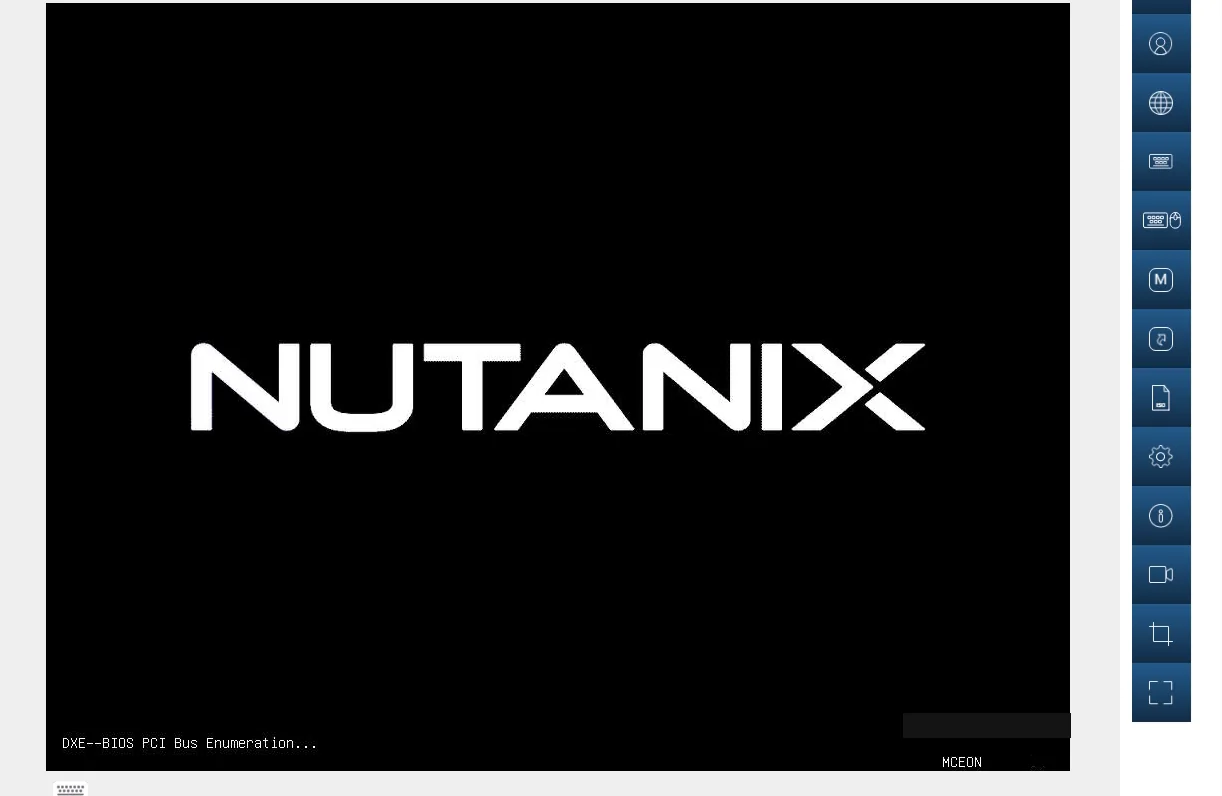
phoenix / # python phoenix/reboot_to_host.pyThe node reboots normally, through the Nutanix BIOS splash and into AHV. Give it time — a full boot with a CVM starting up is several minutes, and the host won’t appear healthy in Prism until the CVM is fully up.
Step 4 — Take the host out of maintenance mode
LCM put the CVM and the host into maintenance mode before it started, and because the operation failed, it never took them out. You do that manually. First find the host ID:
nutanix@CVM~$ ncli host listThen, from a healthy CVM — not the one on the node you’re recovering, clear maintenance mode:
nutanix@CVM~$ ncli host edit id=<host-ID> enable-maintenance-mode=falseVerify it took:
nutanix@CVM~$ acli host.get <hypervisor-IP-address>
nutanix@CVM~$ cluster status | grep -v UP
The acli output should show the host no longer in maintenance mode, and the second command should return nothing — meaning every service on every CVM reports UP. Anything it does print is a service that hasn’t come back, and worth a second look before moving on.
Step 5 — Re-enable the metadata store if the node was out for long
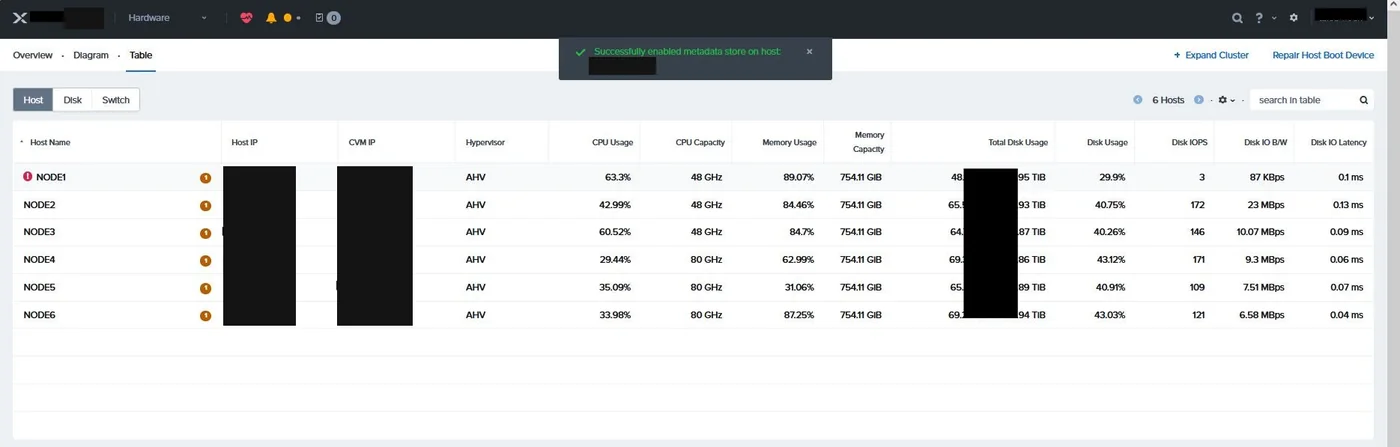
Here’s the part that catches people out. If the node was in maintenance mode for more than about 30 minutes, the cluster will have detached it from the Cassandra metadata ring to protect itself. Bringing the host back doesn’t automatically re-attach it — you have to enable the metadata store on that host explicitly.
In Prism, open the host’s details from the Hardware table and use Enable Metadata Store:

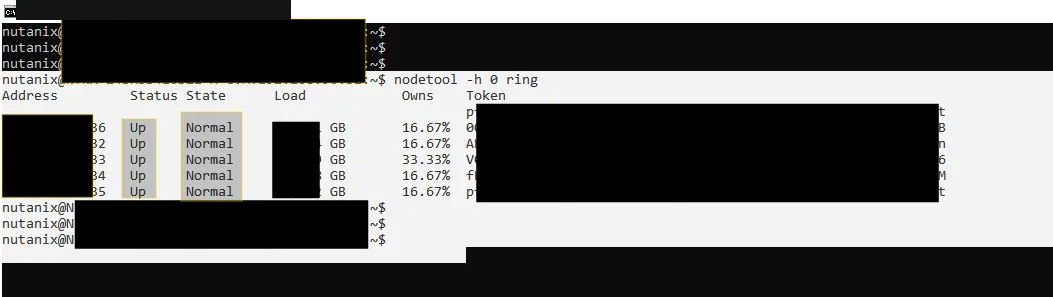
Then watch the ring rebuild. From any CVM:
nutanix@CVM~$ nodetool -h 0 ringImmediately after enabling, the recovered node shows as Forwarding while the others are Normal. That’s expected — metadata is being redistributed back onto it.

Keep re-running nodetool -h 0 ring until every node reads Normal. Don’t start the next maintenance task, and don’t retry the LCM upgrade, until it does. Depending on cluster size and metadata volume this can take a while; on this cluster it was a few minutes.
Step 6 — Confirm the cluster is healthy
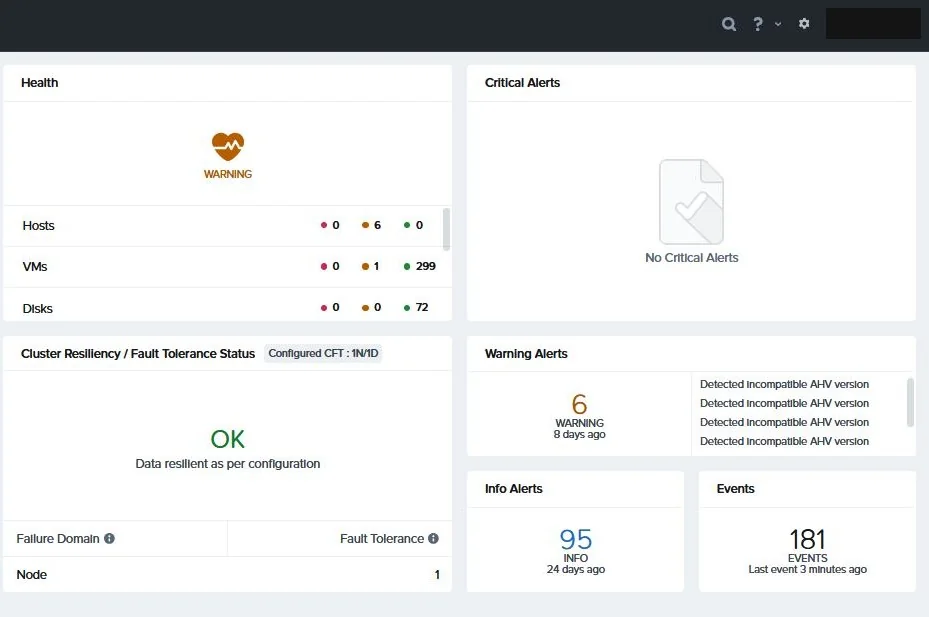
Back in Prism, the home dashboard should show Cluster Resiliency OK and “Data resilient as per configuration.” Expect warnings to linger for a while — in this case, incompatible-AHV-version alerts from the interrupted upgrade — but no critical alerts, and hosts, VMs and disks all green.
Only now should you go back and look at why the firmware upgrade failed, and whether to retry it.
Two rules worth repeating
First: always run the maintenance-mode commands from a healthy CVM, not from the one on the node you’re recovering. Its services may not be fully up, and you want the cluster’s view of the host, not the host’s view of itself.
Second: if any step produces something you don’t expect, stop and contact Nutanix Support. This procedure is for the clean case — a node parked in Phoenix after a failed firmware flash. If the node won’t boot, the ring won’t converge, or cluster status keeps showing services down, that’s a different problem and pushing through it on your own is how a one-node outage becomes a data problem.
If you’ve hit this and want a second pair of eyes before you act, get in touch.